> ## Documentation Index
> Fetch the complete documentation index at: https://docs.navattic.com/llms.txt
> Use this file to discover all available pages before exploring further.
# Teams
> Organize workspace members into teams and control their access to demos.
Available on the Growth plan and above.
Teams let you group workspace members together and control which demos and boards each group can access. Each team member is assigned a role that determines what they can do within that team.
 ## How Teams work
| Term | What it means |
| - | - |
| Workspace | Your company's Navattic account, where all members, boards, and demos live |
| Board | A folder of demos. Each board's access level decides who can see it. |
| Team | A group of workspace members. Share a board with a team to give everyone on it that board's demos. |
| Workspace role | member's role across the whole workspace, set in Settings > Workspace > Members |
| Team role | A member's role on one team, which applies only to boards shared with that team |
Setting up a team takes three steps: create the team, add members and choose their team roles, then share boards with the team.
## Plan availability
| Plan | Teams | Custom roles |
| - | - | - |
| Starter and Base | Not included | Not included |
| Growth | Up to 3 teams | Not included |
| Enterprise | Custom team count | Included with Enhanced permissions |
To upgrade, reach out to [success@navattic.com](mailto:success@navattic.com) or your CSM.
## Creating a team
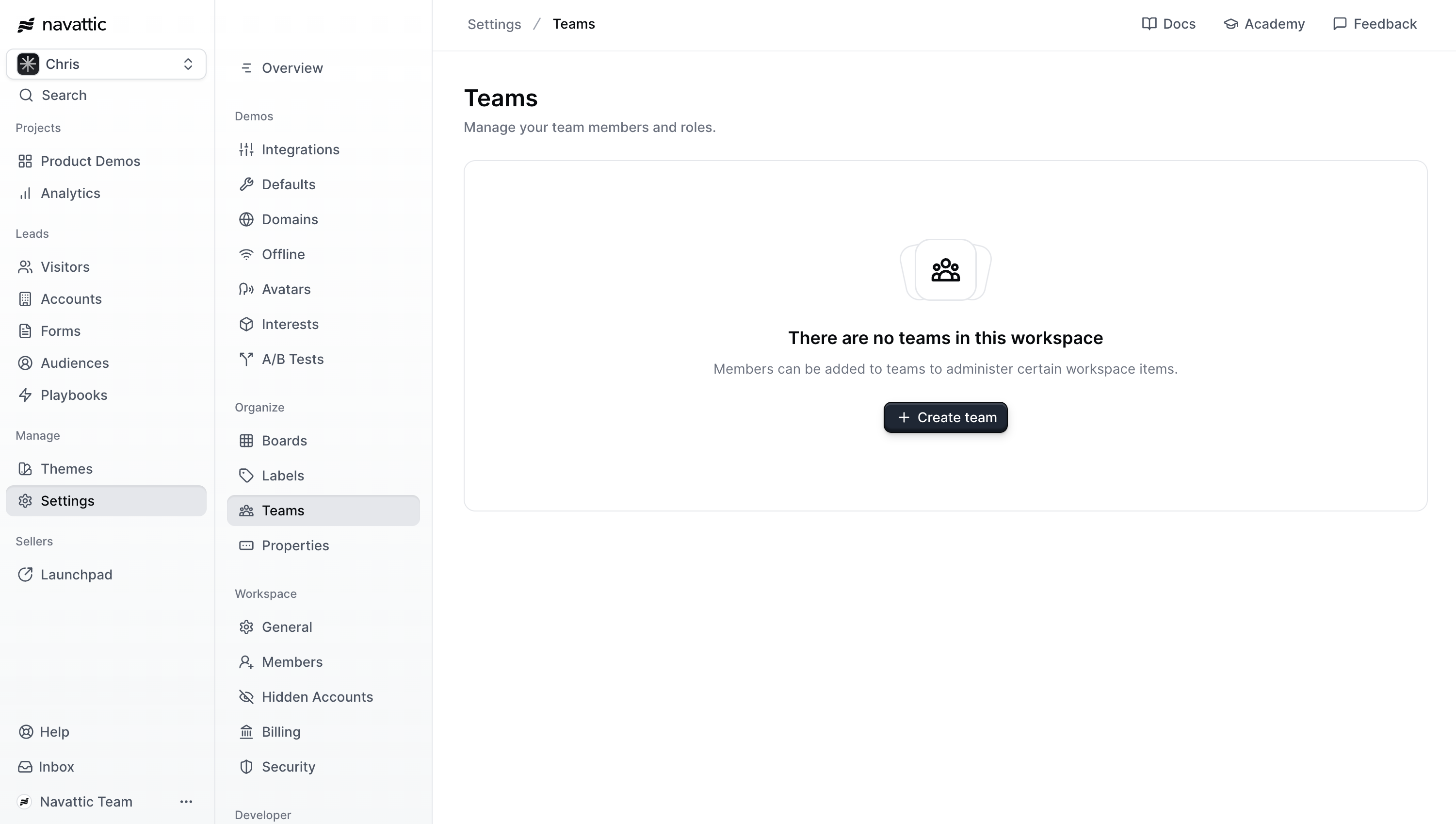
Navigate to **Settings** > **Teams** and click **Create team**.
Enter a **Name** for the team, something recognizable for your organization, such as "Sales Team" or "North America Sales."
Optionally add a **Description** to explain the team's purpose. This helps other admins understand the team's scope at a glance.
Click **Create** to save. You'll be taken directly to the team's detail page.
## Choosing which boards each team can see
Teams are how you give the right people the right demos. Each [board](https://docs.navattic.com/workspace/boards) has an access level, and when you share a board with a team, everyone on that team can open the board and every demo in it.
| Board access level | Who can see the board and its demos |
| - | - |
| Workspace | Every member of the workspace. This is the default for new boards. |
| Team | Members of the selected team or teams, plus workspace admins |
| Personal | Only the board's owner |
Only workspace admins can create boards, change a board's access level, or share a board with a team or the whole workspace. Team roles, including team admin, don't include board management.
## Share a board with a team
1. **Create or edit a board**: Go to the Boards page and click Edit on the board you want to restrict.
2. **Set access to Team:** Set the Access level to Team and select one or more teams.
3. **Save:** Click Save. The board, and all demos it contains, will now only be visible to members of the selected team.
Team-scoped boards can include any type of demo: Interactive Demos, Launchpad boards, or a mix.
## Managing team members
From a team's detail page, you can add members, assign roles, and remove members. Workspace admins and team admins can make these changes.
### Adding members
1. **Open the team:** Go to Settings > Teams and click the team you want to add people to.
2. **Select members:** Click Add member and select one or more workspace members from the User(s) list.
3. **Choose a team role:** Pick a Role for everyone you selected. It applies only to this team's boards.
4. **Add members:** Click Add users. The new members can see the team's boards right away.
## What each team role can do
| On the team's boards, they can | Admin | Builder | Viewer | Launchpad rep |
| - | - | - | - | - |
| See the boards and demos | Yes | Yes | Yes | Yes |
| View and share demos | Yes | Yes | Yes | Yes |
| Create and edit demos | Yes | Yes | No | No |
| Publish demos | Yes | Yes | No | No |
| Create and manage boards for the team | No | No | No | No |
| Share boards with other teams or the whole workspace | No | No | No | No |
| Add or remove team members | Yes | No | No | No |
| Delete demos | No | No | No | No |
| Change billing or workspace settings | No | No | No | No |
Team roles use the same names as workspace roles, but they only apply to boards shared with the team.
## Custom team roles
The team role options come from Settings > Roles. On the **Enterprise plan**, Enhanced permissions let you create custom roles, and those custom roles can also be assigned as team roles. Without Enhanced permissions, the Roles page is read-only and teams use the default roles.
## Launchpad Reps and Managers
Launchpad Rep is a workspace role. Reps keep it on every team they join, and it can't be changed from the team settings page. Workspace admins can designate any Launchpad Rep as a Manager on a team, which gives them access to the Launchpad Analyze pages. Manager is a Launchpad setting and is separate from the team admin role.
## Removing a member
Click Remove next to a member's name on the team detail page. Removing a member from a team does not remove them from the workspace.
## What team members see
When a team member opens Product Demos, they see boards shared with their team and any boards with Workspace access. Boards shared only with other teams are hidden.
| If you're | Workspace boards | Your team's boards | Other teams' boards |
| - | - | - | - |
| One one or more teams | Visible | Visible | Hidden |
| Not on any team | Visible | None | Hidden |
| A workspace admin | Visible | Visible | Visible |
If a demo sits on more than one board a member can reach, they get the highest access from those boards.
Seeing boards for a team you're not on? You're a workspace admin. Workspace admins can see and manage every team, board, and demo.
## Team roles and workspace roles
Every member has one workspace role, plus a team role for each team they join. The two work side by side: a team role applies only to that team's boards, and the workspace role applies everywhere else. Neither one replaces the other. A team role can give more access than the workspace role, but only on that team's boards. A workspace Viewer who is a team Builder can edit that team's demos.
| | Workspace role | Team role |
| - | - | - |
| **Where it's set** | Settings > Workspace > Members | The team's detail page |
| **Billing** | Workspace admins only | Not included in any team role |
| **How many** | One per person | One for each team they're on |
| **What it controls** | Workspace settings, members, teams, boards, and demos on workspace boards | Demos on boards shared with that team, and for team admins, managing that team's members |
## Workspace admin vs. team admin
| Action | Workspace admin | Team admin |
| - | - | - |
| Change billing and workspace settings | Yes | No |
| Invite people to the workspace | Yes | No |
| Create teams | Yes | No |
| Add or remove team members | Yes | Yes |
| Create and manage boards | Yes | No |
| Share boards with other teams or the whole workspace | Yes | No |
| Edit and publish demos on the team's boards | Yes | Yes |
| Delete demos | Yes | No |
| See boards for teams they're not on | Yes | No |
## Editing a team
To change a team's name or description, open the team detail page and click Team settings in the top right. Update the name or description and save.
## Frequently asked questions
Yes. Workspace members can be added to multiple teams, each with a different role if needed.
No. A team role covers the demos on boards shared with that team. Everything else follows the member's workspace role in **Settings** > **Members**.
Removing a member from the workspace does not automatically remove them from any teams they belong to. If you see an error related to a removed member on the Teams page, contact support to have the underlying data cleaned up.
Team limits depend on your plan. If you have reached your team limit, you'll see a notice on the Teams settings page. Contact sales to request an increase.
No. Demos live on boards, not with the person who built them, so they stay on the team's board. The removed member loses access to that board unless they can still reach it another way.
This documentation is built and hosted on [Mintlify](https://mintlify.com), a developer documentation platform.
## How Teams work
| Term | What it means |
| - | - |
| Workspace | Your company's Navattic account, where all members, boards, and demos live |
| Board | A folder of demos. Each board's access level decides who can see it. |
| Team | A group of workspace members. Share a board with a team to give everyone on it that board's demos. |
| Workspace role | member's role across the whole workspace, set in Settings > Workspace > Members |
| Team role | A member's role on one team, which applies only to boards shared with that team |
Setting up a team takes three steps: create the team, add members and choose their team roles, then share boards with the team.
## Plan availability
| Plan | Teams | Custom roles |
| - | - | - |
| Starter and Base | Not included | Not included |
| Growth | Up to 3 teams | Not included |
| Enterprise | Custom team count | Included with Enhanced permissions |
To upgrade, reach out to [success@navattic.com](mailto:success@navattic.com) or your CSM.
## Creating a team
Navigate to **Settings** > **Teams** and click **Create team**.
Enter a **Name** for the team, something recognizable for your organization, such as "Sales Team" or "North America Sales."
Optionally add a **Description** to explain the team's purpose. This helps other admins understand the team's scope at a glance.
Click **Create** to save. You'll be taken directly to the team's detail page.
## Choosing which boards each team can see
Teams are how you give the right people the right demos. Each [board](https://docs.navattic.com/workspace/boards) has an access level, and when you share a board with a team, everyone on that team can open the board and every demo in it.
| Board access level | Who can see the board and its demos |
| - | - |
| Workspace | Every member of the workspace. This is the default for new boards. |
| Team | Members of the selected team or teams, plus workspace admins |
| Personal | Only the board's owner |
Only workspace admins can create boards, change a board's access level, or share a board with a team or the whole workspace. Team roles, including team admin, don't include board management.
## Share a board with a team
1. **Create or edit a board**: Go to the Boards page and click Edit on the board you want to restrict.
2. **Set access to Team:** Set the Access level to Team and select one or more teams.
3. **Save:** Click Save. The board, and all demos it contains, will now only be visible to members of the selected team.
Team-scoped boards can include any type of demo: Interactive Demos, Launchpad boards, or a mix.
## Managing team members
From a team's detail page, you can add members, assign roles, and remove members. Workspace admins and team admins can make these changes.
### Adding members
1. **Open the team:** Go to Settings > Teams and click the team you want to add people to.
2. **Select members:** Click Add member and select one or more workspace members from the User(s) list.
3. **Choose a team role:** Pick a Role for everyone you selected. It applies only to this team's boards.
4. **Add members:** Click Add users. The new members can see the team's boards right away.
## What each team role can do
| On the team's boards, they can | Admin | Builder | Viewer | Launchpad rep |
| - | - | - | - | - |
| See the boards and demos | Yes | Yes | Yes | Yes |
| View and share demos | Yes | Yes | Yes | Yes |
| Create and edit demos | Yes | Yes | No | No |
| Publish demos | Yes | Yes | No | No |
| Create and manage boards for the team | No | No | No | No |
| Share boards with other teams or the whole workspace | No | No | No | No |
| Add or remove team members | Yes | No | No | No |
| Delete demos | No | No | No | No |
| Change billing or workspace settings | No | No | No | No |
Team roles use the same names as workspace roles, but they only apply to boards shared with the team.
## Custom team roles
The team role options come from Settings > Roles. On the **Enterprise plan**, Enhanced permissions let you create custom roles, and those custom roles can also be assigned as team roles. Without Enhanced permissions, the Roles page is read-only and teams use the default roles.
## Launchpad Reps and Managers
Launchpad Rep is a workspace role. Reps keep it on every team they join, and it can't be changed from the team settings page. Workspace admins can designate any Launchpad Rep as a Manager on a team, which gives them access to the Launchpad Analyze pages. Manager is a Launchpad setting and is separate from the team admin role.
## Removing a member
Click Remove next to a member's name on the team detail page. Removing a member from a team does not remove them from the workspace.
## What team members see
When a team member opens Product Demos, they see boards shared with their team and any boards with Workspace access. Boards shared only with other teams are hidden.
| If you're | Workspace boards | Your team's boards | Other teams' boards |
| - | - | - | - |
| One one or more teams | Visible | Visible | Hidden |
| Not on any team | Visible | None | Hidden |
| A workspace admin | Visible | Visible | Visible |
If a demo sits on more than one board a member can reach, they get the highest access from those boards.
Seeing boards for a team you're not on? You're a workspace admin. Workspace admins can see and manage every team, board, and demo.
## Team roles and workspace roles
Every member has one workspace role, plus a team role for each team they join. The two work side by side: a team role applies only to that team's boards, and the workspace role applies everywhere else. Neither one replaces the other. A team role can give more access than the workspace role, but only on that team's boards. A workspace Viewer who is a team Builder can edit that team's demos.
| | Workspace role | Team role |
| - | - | - |
| **Where it's set** | Settings > Workspace > Members | The team's detail page |
| **Billing** | Workspace admins only | Not included in any team role |
| **How many** | One per person | One for each team they're on |
| **What it controls** | Workspace settings, members, teams, boards, and demos on workspace boards | Demos on boards shared with that team, and for team admins, managing that team's members |
## Workspace admin vs. team admin
| Action | Workspace admin | Team admin |
| - | - | - |
| Change billing and workspace settings | Yes | No |
| Invite people to the workspace | Yes | No |
| Create teams | Yes | No |
| Add or remove team members | Yes | Yes |
| Create and manage boards | Yes | No |
| Share boards with other teams or the whole workspace | Yes | No |
| Edit and publish demos on the team's boards | Yes | Yes |
| Delete demos | Yes | No |
| See boards for teams they're not on | Yes | No |
## Editing a team
To change a team's name or description, open the team detail page and click Team settings in the top right. Update the name or description and save.
## Frequently asked questions
Yes. Workspace members can be added to multiple teams, each with a different role if needed.
No. A team role covers the demos on boards shared with that team. Everything else follows the member's workspace role in **Settings** > **Members**.
Removing a member from the workspace does not automatically remove them from any teams they belong to. If you see an error related to a removed member on the Teams page, contact support to have the underlying data cleaned up.
Team limits depend on your plan. If you have reached your team limit, you'll see a notice on the Teams settings page. Contact sales to request an increase.
No. Demos live on boards, not with the person who built them, so they stay on the team's board. The removed member loses access to that board unless they can still reach it another way.
This documentation is built and hosted on [Mintlify](https://mintlify.com), a developer documentation platform.