> ## Documentation Index
> Fetch the complete documentation index at: https://docs.navattic.com/llms.txt
> Use this file to discover all available pages before exploring further.
# Workspace Organization
> How to structure, manage, and govern a growing demo library in Navattic.
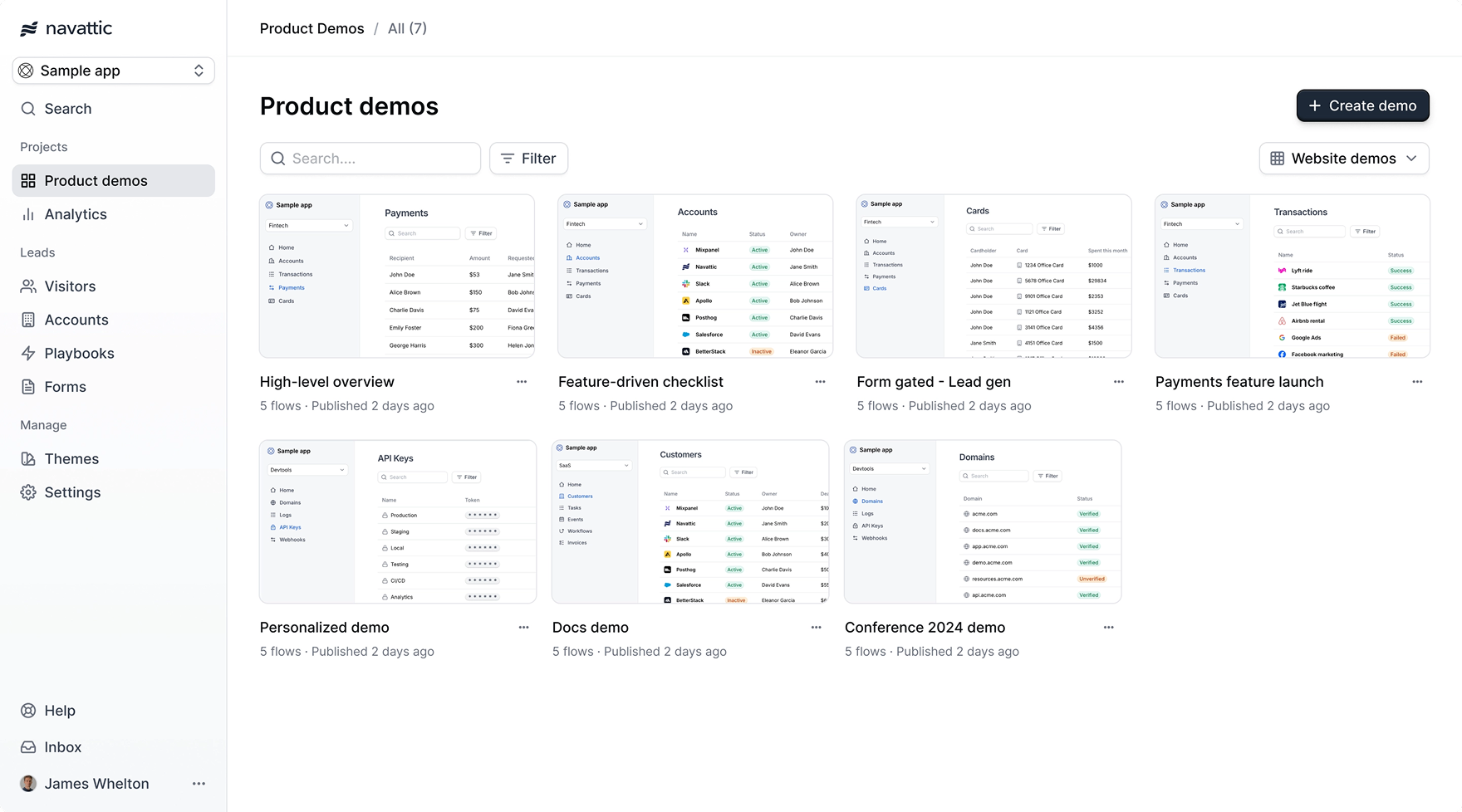 Navattic gives you several tools for keeping your demo library organized, current, and accessible to the right people. This page covers how to use them together as your library grows.
## Organizational building blocks
Before diving into strategy, here's a quick overview of what each tool does:
| Tool | Purpose |
| - | - |
| **Demo** | A complete interactive experience made up of one or more Flows. |
| **Flow** | A step-by-step sequence within a demo. |
| **Capture** | A snapshot of your application that one or more Flows reference. |
| **Board** | A curated view of demos, shared with specific teams or the whole workspace. |
| **Label** | A tag applied to demos for filtering and categorization. |
| **Team** | A group of users with scoped access to specific boards. |
Organize demos onto shared views.
Categorize demos for easy filtering.
Scope access to demos by team.
## Structuring your demo library
### Boards
Create boards to group related demos: by use case, product area, sales team, or region. Start simple: a single Sales board and a single Marketing board is enough for most teams getting started. Add more boards as your library grows.
When setting up a board, decide who should see it:
* **Workspace-level access**: visible to all workspace members
* **Team-level access**: visible only to members of a specific [team](/workspace/teams)
Use team-scoped boards to prevent reps from one region or function from seeing demos that aren't relevant to them.
### Labels
Labels work across boards and let you filter demos by dimension. Some common label strategies:
* **By product area**: tag demos for each core feature or product line
* **By customer type**: enterprise vs. mid-market vs. SMB
* **By funnel stage**: prospecting, discovery, evaluation
* **By content status**: current, needs-update, archived
You can apply multiple labels to a single demo. Use the label filter on the Product demos page to find demos that match a specific combination.
### Tips for larger libraries
* Agree on a label taxonomy before you start labeling. Inconsistent labels are hard to fix later.
* Use boards for audience and access, labels for content attributes.
* Review boards periodically and remove demos that no longer belong.
## Reusing content across demos
### Captures
A capture is a snapshot of your application that can be referenced by multiple flows across different demos. If your capture is updated (for example, after a product change), all flows using that capture reflect the update.
To reuse a capture in a new flow, use **Reselect capture** from within the flow builder and select an existing capture from your workspace.
### Duplicating demos
To create a variation of an existing demo, duplicate it from the Product demos page. For example, you might tailor a version to a specific vertical or audience. The duplicate starts as a draft. You must click **Publish** before it appears on share links. Changes to the duplicate do not affect the original.
### Version history
Navattic tracks versions of your demos so you can see what changed over time. To access version history, open a demo in the **Build** tab and select **Versions** from the left sidebar.
## Keeping demos current
As your product evolves, your captures may become outdated. Here's a general maintenance approach:
1. **Set a review cadence.** For fast-moving products, review key demos each time a significant feature ships.
2. **Recapture changed screens.** Use the Chrome extension to take a new capture of a screen that has changed, then swap it into the relevant flow using **Reselect capture**.
3. **Check labels for status.** Adding a "needs-update" label to outdated demos helps your team know which ones to prioritize.
Because captures can be shared across multiple flows, updating a single capture propagates the
change everywhere it is used. Be careful when replacing shared captures in production demos.
## Archiving and deleting demos
### Archiving a demo
Archiving removes a demo from your active library without permanently deleting it. Archived demos no longer appear on the Product demos page, but they can be restored at any time.
To archive a demo, open its dropdown menu from the Product demos page and select **Archive**.
To view and restore archived demos, go to **Workspace Settings > Archive**.
### Permanently deleting a demo
Admins can permanently delete an archived demo. Deletion removes the demo and all of its associated resources: flows, capture collections, captures, and published versions. This action cannot be undone.
Permanently deleted demos cannot be recovered. Archive a demo first and confirm you no longer need
it before deleting.
You can delete an archived demo in two places:
**From the Product demos page:**
1. Find the demo and open its dropdown menu.
2. Select **Delete**. This option only appears when the demo is archived and you are an admin.
3. Review the list of resources that will be deleted, then confirm.
**From the Archive page:**
1. Go to **Workspace Settings > Archive**.
2. Find the demo in the table and click the menu.
3. Select **Delete**.
4. Review the list of resources that will be deleted, then confirm.
## Governance and access control
### Roles
Navattic has four workspace roles that control what each user can do:
| Role | What they can do |
| - | - |
| **Admin** | Full workspace access: manage settings, configure integrations, invite and remove members, create and publish demos. |
| **Builder** | Create, edit, and publish demos. View analytics and integrations. Cannot manage workspace settings or invite members. |
| **Viewer** | Browse the demo library and share demos. Cannot build or edit demos. |
| **Launchpad Rep** | View and share demos through Launchpad only. Cannot access the demo builder or workspace settings. |
Assign roles when inviting members. Go to **Settings > Members** to update existing roles.
### Permissions matrix
The table below shows which actions each role can perform across key areas of Navattic.
| Action | Admin | Builder | Viewer | Launchpad Rep |
| - | :-: | :-: | :-: | :-: |
| Create and edit demos | ✓ | ✓ | | |
| Publish demos | ✓ | ✓ | | |
| View demo library | ✓ | ✓ | ✓ | |
| Share demos | ✓ | ✓ | ✓ | |
| View analytics | ✓ | ✓ | ✓ | |
| Archive demos | ✓ | | | |
| Delete demos | ✓ | | | |
| Access Launchpad | ✓ | ✓ | | ✓ |
| Invite and manage members | ✓ | | | |
| Configure integrations | ✓ | | | |
| Manage workspace settings | ✓ | | | |
### Approval workflow
If you want to prevent unapproved changes from going live on already-published demos, enable the **Require approval to publish** setting in **Settings > General**. Once enabled, team members without publish permission must request a review before their changes can go live.
See [Approval Workflow](/workspace/approval-workflow) for full setup details.
### Team-scoped boards
Use [Teams](/workspace/teams) to restrict which boards (and therefore which demos) specific groups of users can access in Launchpad. This is useful for separating demo content by region, function, or product line.
## FAQs
Boards control which demos appear in a given view, and can be scoped to specific teams. Labels
are tags you apply to demos for filtering; they don't control access. Use boards to organize by
audience; use labels to organize by content attributes.
Yes. Captures are shared across flows. If you replace or re-capture a screen, all flows that
reference that capture will reflect the change. Review which demos use a capture before updating
it in production.
Yes. Duplicate a demo from the Product demos page to create an independent copy. The duplicate
starts as a draft. Publish it when you're ready for it to go live. Changes to the duplicate do
not affect the original.
Assign reps the Launchpad Rep role in your workspace. Launchpad Reps can only view and share
demos through Launchpad; they cannot access the demo builder. For admins and builders, use the
[Approval Workflow](/workspace/approval-workflow) to require review before changes are
published.
Open a demo in the Demo builder, go to the **Build** tab, and select **Versions** from the left
sidebar.
Labels are workspace-wide and apply across all boards. You can use a naming convention to
associate labels with specific boards (e.g., prefix labels with the board name), but labels
themselves are not scoped to individual boards.
You must be a workspace admin and the demo must be archived first. Once archived, open the
demo's dropdown on the Product demos page and select **Delete**, or go to **Workspace Settings >
Archive**, find the demo, and select **Delete** from its menu. Deletion is permanent and removes
all associated flows, captures, and published versions.
No. Permanent deletion cannot be undone. Archive demos first if you think you might need them
later. Archived demos can be restored at any time.
This documentation is built and hosted on [Mintlify](https://mintlify.com), a developer documentation platform.
Navattic gives you several tools for keeping your demo library organized, current, and accessible to the right people. This page covers how to use them together as your library grows.
## Organizational building blocks
Before diving into strategy, here's a quick overview of what each tool does:
| Tool | Purpose |
| - | - |
| **Demo** | A complete interactive experience made up of one or more Flows. |
| **Flow** | A step-by-step sequence within a demo. |
| **Capture** | A snapshot of your application that one or more Flows reference. |
| **Board** | A curated view of demos, shared with specific teams or the whole workspace. |
| **Label** | A tag applied to demos for filtering and categorization. |
| **Team** | A group of users with scoped access to specific boards. |
Organize demos onto shared views.
Categorize demos for easy filtering.
Scope access to demos by team.
## Structuring your demo library
### Boards
Create boards to group related demos: by use case, product area, sales team, or region. Start simple: a single Sales board and a single Marketing board is enough for most teams getting started. Add more boards as your library grows.
When setting up a board, decide who should see it:
* **Workspace-level access**: visible to all workspace members
* **Team-level access**: visible only to members of a specific [team](/workspace/teams)
Use team-scoped boards to prevent reps from one region or function from seeing demos that aren't relevant to them.
### Labels
Labels work across boards and let you filter demos by dimension. Some common label strategies:
* **By product area**: tag demos for each core feature or product line
* **By customer type**: enterprise vs. mid-market vs. SMB
* **By funnel stage**: prospecting, discovery, evaluation
* **By content status**: current, needs-update, archived
You can apply multiple labels to a single demo. Use the label filter on the Product demos page to find demos that match a specific combination.
### Tips for larger libraries
* Agree on a label taxonomy before you start labeling. Inconsistent labels are hard to fix later.
* Use boards for audience and access, labels for content attributes.
* Review boards periodically and remove demos that no longer belong.
## Reusing content across demos
### Captures
A capture is a snapshot of your application that can be referenced by multiple flows across different demos. If your capture is updated (for example, after a product change), all flows using that capture reflect the update.
To reuse a capture in a new flow, use **Reselect capture** from within the flow builder and select an existing capture from your workspace.
### Duplicating demos
To create a variation of an existing demo, duplicate it from the Product demos page. For example, you might tailor a version to a specific vertical or audience. The duplicate starts as a draft. You must click **Publish** before it appears on share links. Changes to the duplicate do not affect the original.
### Version history
Navattic tracks versions of your demos so you can see what changed over time. To access version history, open a demo in the **Build** tab and select **Versions** from the left sidebar.
## Keeping demos current
As your product evolves, your captures may become outdated. Here's a general maintenance approach:
1. **Set a review cadence.** For fast-moving products, review key demos each time a significant feature ships.
2. **Recapture changed screens.** Use the Chrome extension to take a new capture of a screen that has changed, then swap it into the relevant flow using **Reselect capture**.
3. **Check labels for status.** Adding a "needs-update" label to outdated demos helps your team know which ones to prioritize.
Because captures can be shared across multiple flows, updating a single capture propagates the
change everywhere it is used. Be careful when replacing shared captures in production demos.
## Archiving and deleting demos
### Archiving a demo
Archiving removes a demo from your active library without permanently deleting it. Archived demos no longer appear on the Product demos page, but they can be restored at any time.
To archive a demo, open its dropdown menu from the Product demos page and select **Archive**.
To view and restore archived demos, go to **Workspace Settings > Archive**.
### Permanently deleting a demo
Admins can permanently delete an archived demo. Deletion removes the demo and all of its associated resources: flows, capture collections, captures, and published versions. This action cannot be undone.
Permanently deleted demos cannot be recovered. Archive a demo first and confirm you no longer need
it before deleting.
You can delete an archived demo in two places:
**From the Product demos page:**
1. Find the demo and open its dropdown menu.
2. Select **Delete**. This option only appears when the demo is archived and you are an admin.
3. Review the list of resources that will be deleted, then confirm.
**From the Archive page:**
1. Go to **Workspace Settings > Archive**.
2. Find the demo in the table and click the menu.
3. Select **Delete**.
4. Review the list of resources that will be deleted, then confirm.
## Governance and access control
### Roles
Navattic has four workspace roles that control what each user can do:
| Role | What they can do |
| - | - |
| **Admin** | Full workspace access: manage settings, configure integrations, invite and remove members, create and publish demos. |
| **Builder** | Create, edit, and publish demos. View analytics and integrations. Cannot manage workspace settings or invite members. |
| **Viewer** | Browse the demo library and share demos. Cannot build or edit demos. |
| **Launchpad Rep** | View and share demos through Launchpad only. Cannot access the demo builder or workspace settings. |
Assign roles when inviting members. Go to **Settings > Members** to update existing roles.
### Permissions matrix
The table below shows which actions each role can perform across key areas of Navattic.
| Action | Admin | Builder | Viewer | Launchpad Rep |
| - | :-: | :-: | :-: | :-: |
| Create and edit demos | ✓ | ✓ | | |
| Publish demos | ✓ | ✓ | | |
| View demo library | ✓ | ✓ | ✓ | |
| Share demos | ✓ | ✓ | ✓ | |
| View analytics | ✓ | ✓ | ✓ | |
| Archive demos | ✓ | | | |
| Delete demos | ✓ | | | |
| Access Launchpad | ✓ | ✓ | | ✓ |
| Invite and manage members | ✓ | | | |
| Configure integrations | ✓ | | | |
| Manage workspace settings | ✓ | | | |
### Approval workflow
If you want to prevent unapproved changes from going live on already-published demos, enable the **Require approval to publish** setting in **Settings > General**. Once enabled, team members without publish permission must request a review before their changes can go live.
See [Approval Workflow](/workspace/approval-workflow) for full setup details.
### Team-scoped boards
Use [Teams](/workspace/teams) to restrict which boards (and therefore which demos) specific groups of users can access in Launchpad. This is useful for separating demo content by region, function, or product line.
## FAQs
Boards control which demos appear in a given view, and can be scoped to specific teams. Labels
are tags you apply to demos for filtering; they don't control access. Use boards to organize by
audience; use labels to organize by content attributes.
Yes. Captures are shared across flows. If you replace or re-capture a screen, all flows that
reference that capture will reflect the change. Review which demos use a capture before updating
it in production.
Yes. Duplicate a demo from the Product demos page to create an independent copy. The duplicate
starts as a draft. Publish it when you're ready for it to go live. Changes to the duplicate do
not affect the original.
Assign reps the Launchpad Rep role in your workspace. Launchpad Reps can only view and share
demos through Launchpad; they cannot access the demo builder. For admins and builders, use the
[Approval Workflow](/workspace/approval-workflow) to require review before changes are
published.
Open a demo in the Demo builder, go to the **Build** tab, and select **Versions** from the left
sidebar.
Labels are workspace-wide and apply across all boards. You can use a naming convention to
associate labels with specific boards (e.g., prefix labels with the board name), but labels
themselves are not scoped to individual boards.
You must be a workspace admin and the demo must be archived first. Once archived, open the
demo's dropdown on the Product demos page and select **Delete**, or go to **Workspace Settings >
Archive**, find the demo, and select **Delete** from its menu. Deletion is permanent and removes
all associated flows, captures, and published versions.
No. Permanent deletion cannot be undone. Archive demos first if you think you might need them
later. Archived demos can be restored at any time.
This documentation is built and hosted on [Mintlify](https://mintlify.com), a developer documentation platform.